
Learnvelo LTI 1.3 Setup Guide for Moodle
Connect Learnvelo to Moodle using LTI 1.3 so instructors can add Learnvelo content directly into their courses.
This guide walks LMS administrators through connecting Learnvelo to Moodle using LTI 1.3. After completing these steps, instructors will be able to add Learnvelo content directly into their Moodle courses.
Prerequisites
- Moodle site administrator access
- Moodle 3.10 or later (LTI 1.3 support)
- A Learnvelo account with the LMS Admin role. If you don't have one, sign up at app.learnvelo.com/signup and select LMS Admin as your role during registration -- no approval from Learnvelo is needed to create an account.
Overview
Setting up the integration requires configuring both Learnvelo and Moodle. You will switch between the two systems during this process:
- Register your institution in Learnvelo
- Create an LTI platform in Learnvelo and copy the tool configuration URLs
- Register Learnvelo as an external tool in Moodle
- Enter the Moodle-provided configuration values back in Learnvelo
- Test the connection
Step 1: Register Your Institution in Learnvelo
If your institution is not yet registered in Learnvelo, you will need to register it first.
- Log in to Learnvelo at app.learnvelo.com
- Navigate to My Institutions from the dashboard menu
- Click Register Institution
- Fill in the required fields:
- Institution Name -- Your institution's official name
- Website -- Your institution's website URL
- Primary Contact Name -- The person managing the LTI integration
- Contact Title -- Their role (e.g., “Director of Educational Technology”)
- Click Submit Registration
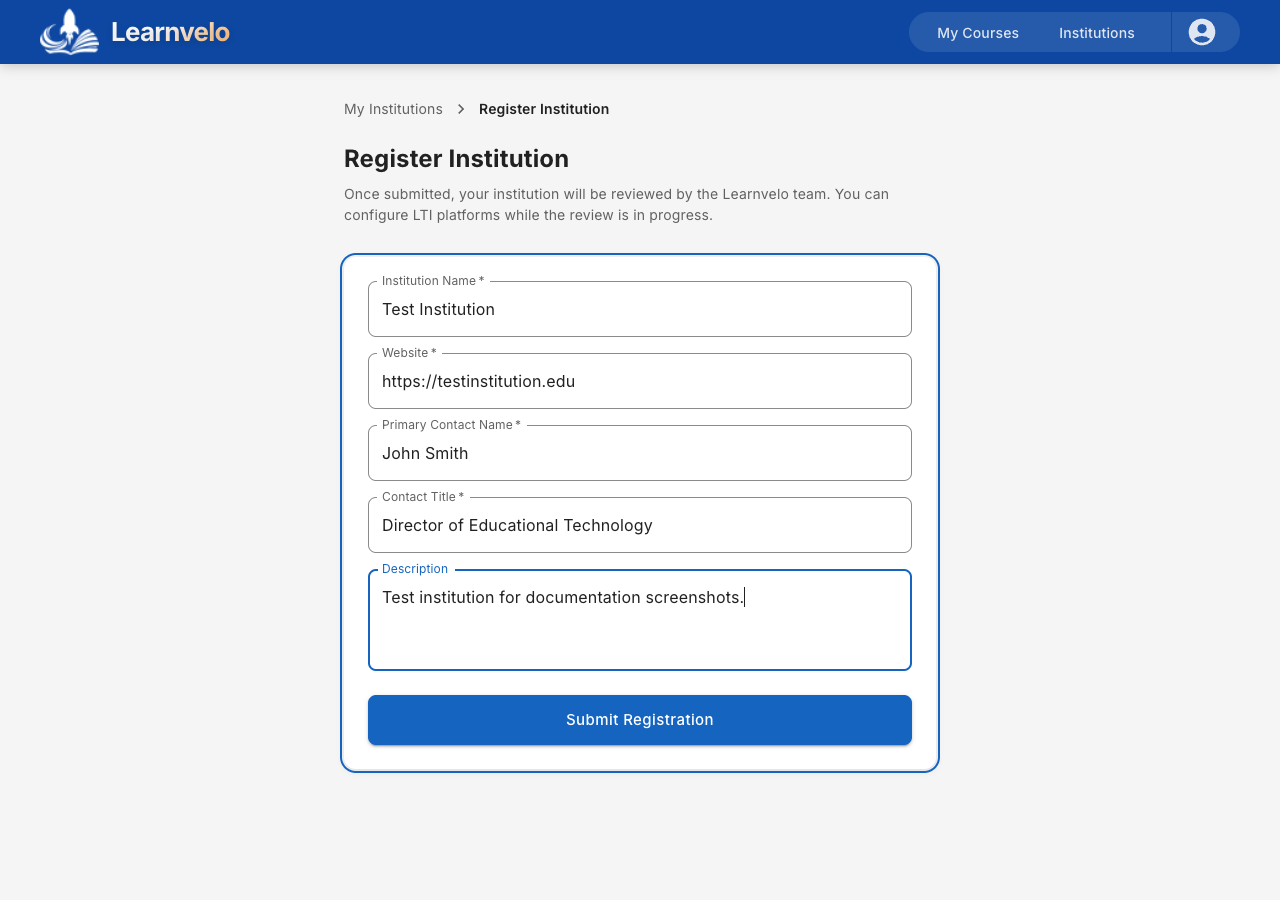
Note: Your institution will be reviewed by the Learnvelo team. You can proceed with the LTI configuration while the review is in progress, but LTI launches will not work until approval is granted.
Step 2: Create an LTI Platform in Learnvelo
- From your institution's detail page, go to the Integrations tab
- Click Add Integration
- In the dialog, enter:
- Platform Name -- A descriptive name (e.g., “Moodle Production”)
- LMS Type -- Select Moodle
- Environment -- Select Production (or Staging/Development for testing)
- Click Create Integration
You will be redirected to the platform detail page.
Step 3: Copy Tool Configuration URLs from Learnvelo
On the platform detail page, locate the Tool Configuration section. You will need these URLs when configuring Moodle:
| Field | URL |
|---|---|
| Login Initiation URL | https://api.learnvelo.com/api/lti/login/ |
| Launch / Redirect URL | https://api.learnvelo.com/api/lti/launch/ |
| Deep Linking URL | https://api.learnvelo.com/api/lti/launch/ |
| JWKS URL | https://api.learnvelo.com/api/lti/jwks/{platform-id}/ |
Important: The JWKS URL is unique to your platform. Use the copy button next to each field to ensure accuracy.
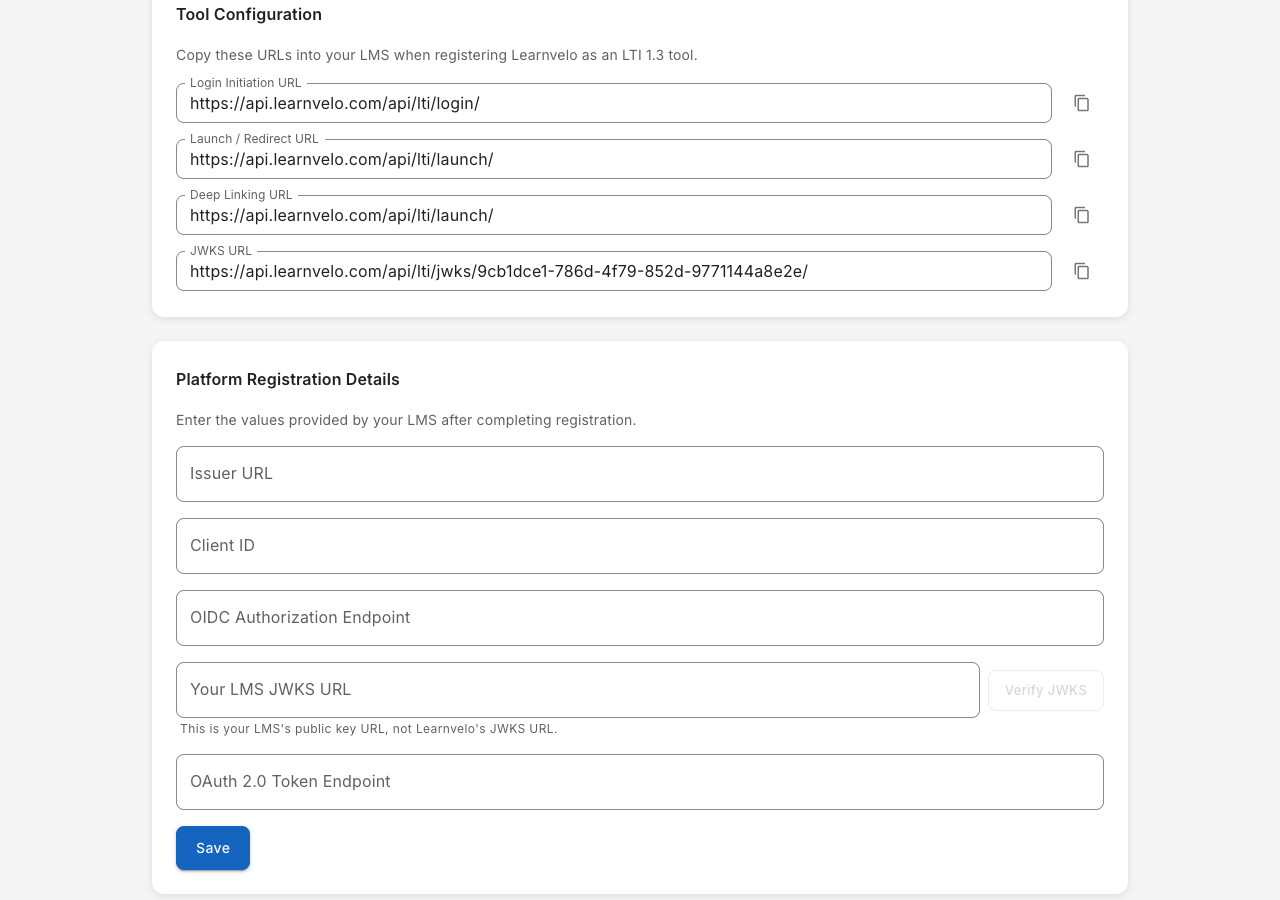
Keep this Learnvelo tab open -- you will return to it after configuring Moodle.
Step 4: Register Learnvelo as an External Tool in Moodle
Now switch to your Moodle admin panel.
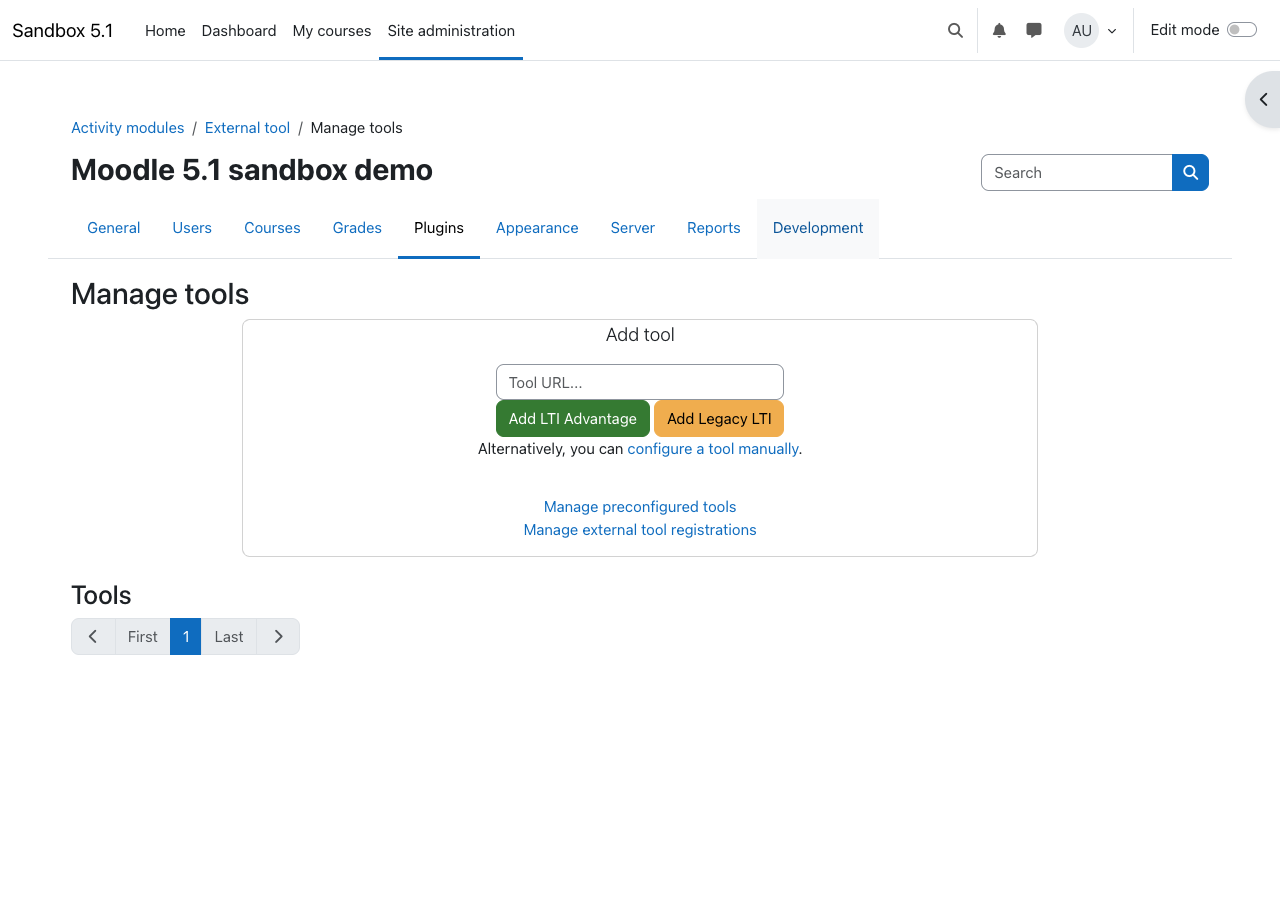
4a. Open External Tool Configuration
- Go to Site Administration > Plugins > Activity Modules > External Tool
- Click Manage Tools
- Click Configure a Tool Manually
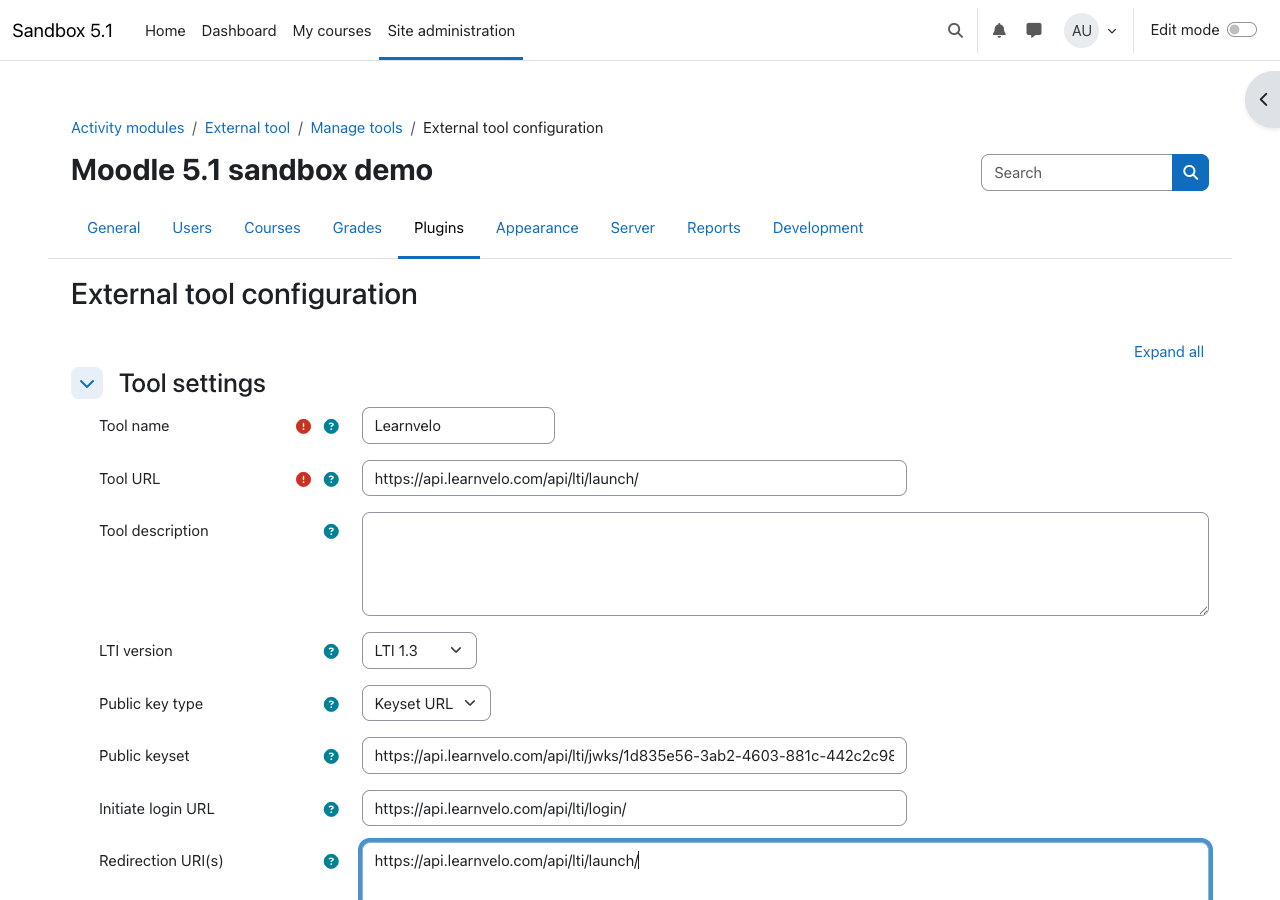
4b. Enter Tool Settings
Fill in the following fields:
| Moodle Field | Value |
|---|---|
| Tool name | Learnvelo |
| Tool URL | https://api.learnvelo.com/api/lti/launch/ |
| LTI version | LTI 1.3 |
| Public keyset URL | Paste the JWKS URL from Learnvelo |
| Initiate login URL | https://api.learnvelo.com/api/lti/login/ |
| Redirection URI(s) | https://api.learnvelo.com/api/lti/launch/ |
4c. Configure Services (Optional)
Under Services:
- IMS LTI Assignment and Grade Services -- Set to “Use this service for grade sync and column management” if you want grade passback from Learnvelo activities
- IMS LTI Names and Role Provisioning -- Set to “Use this service to retrieve members' information as per privacy settings” if desired
4d. Configure Tool Visibility
Under Tool configuration usage, select “Show in activity chooser and as a preconfigured tool”. This makes Learnvelo appear directly in the activity chooser when instructors add content to their course, rather than requiring them to first select “External tool” and then find Learnvelo in a dropdown.
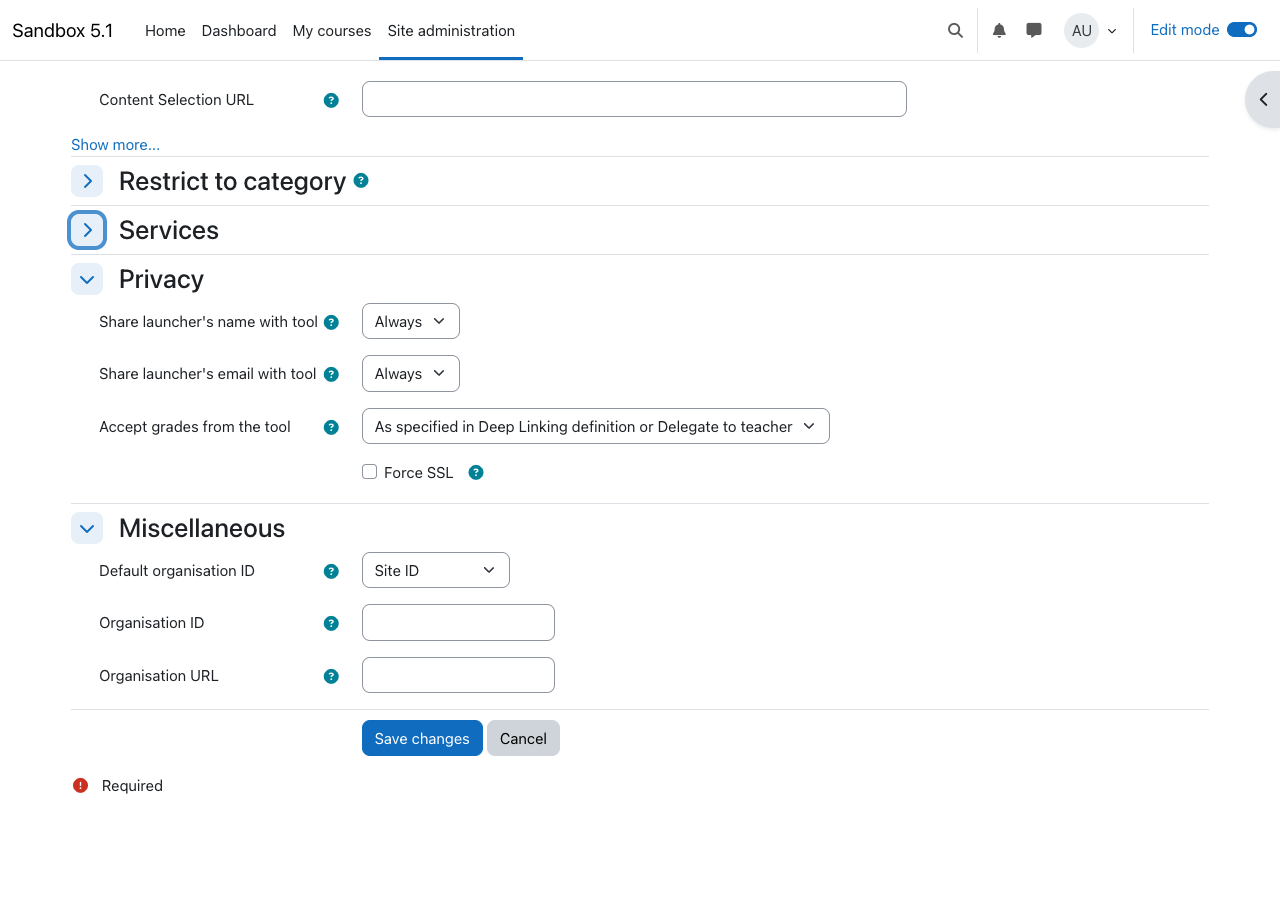
4e. Configure Privacy Settings
Under Privacy:
- Share launcher's name with tool -- Recommended: Always
- Share launcher's email with tool -- Recommended: Always
Note: Sharing email allows Learnvelo to match LTI users with existing Learnvelo accounts, providing a seamless experience. Sharing name ensures student and instructor names display correctly in Learnvelo.
4f. Save the Tool
- Click Save changes
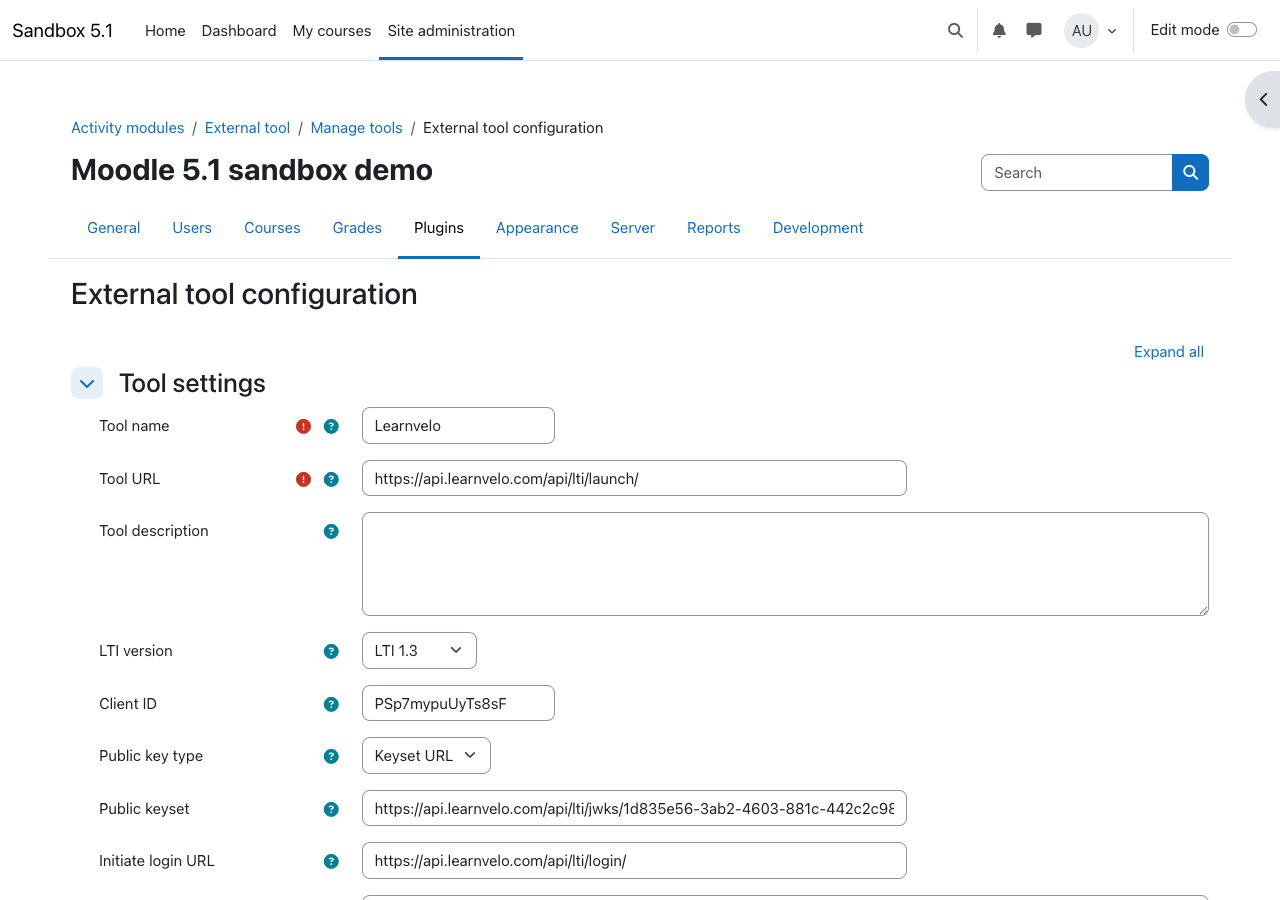
- Moodle will now display the tool in the list with a Client ID and configuration details
4g. View the Tool Configuration Details
Click the tool name or the details icon to view:
- Client ID -- Copy this value
- Platform ID (Issuer) -- Your Moodle site URL (e.g.,
https://moodle.yourschool.edu) - Authorization endpoint -- Usually
https://{your-moodle-domain}/mod/lti/auth.php - Public keyset URL -- Usually
https://{your-moodle-domain}/mod/lti/certs.php - Access token URL -- Usually
https://{your-moodle-domain}/mod/lti/token.php
Step 5: Enter Moodle Configuration in Learnvelo
Switch back to your Learnvelo tab.
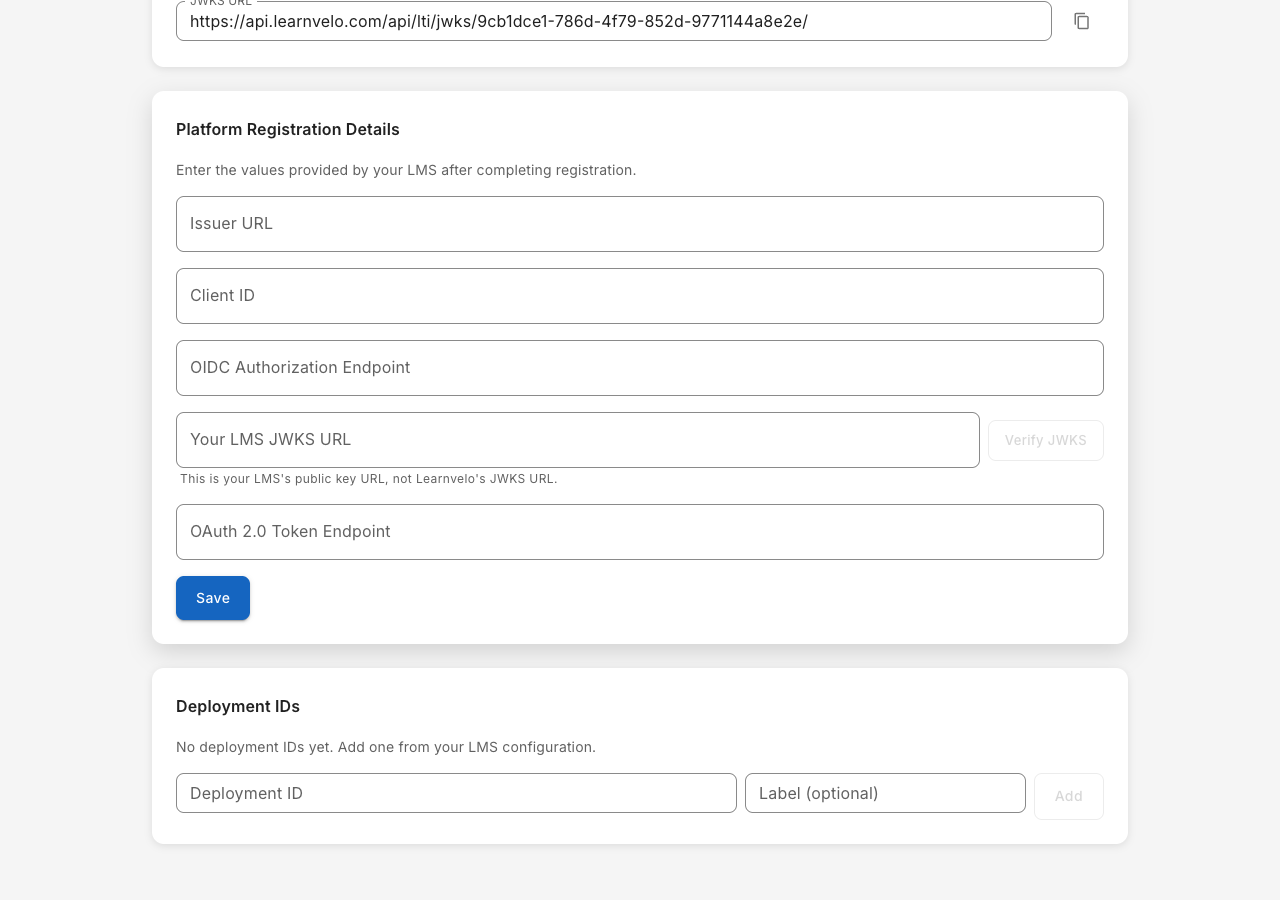
- On the platform detail page, locate the Platform Registration Details section
- Enter the following values:
| Learnvelo Field | Value |
|---|---|
| Issuer URL | Your Moodle site URL (e.g., https://moodle.yourschool.edu) |
| Client ID | The Client ID from Moodle (Step 4f) |
| OIDC Authorization Endpoint | https://{your-moodle-domain}/mod/lti/auth.php |
| Your LMS JWKS URL | https://{your-moodle-domain}/mod/lti/certs.php |
| OAuth 2.0 Token Endpoint | https://{your-moodle-domain}/mod/lti/token.php |
- Click Verify JWKS to test that Learnvelo can reach Moodle's public keys
- Click Save
Tip: The Platform Registration Details form is on the Learnvelo platform detail page. The fields and their values are listed in the table above.
Step 6: Add the Deployment ID
Moodle automatically generates a Deployment ID when you save the tool configuration.
- In Moodle, return to the tool configuration details
- Find the Deployment ID value
- In Learnvelo, scroll to the Deployment IDs section on the platform detail page
- Enter the Deployment ID from Moodle
- Optionally add a label (e.g., “Main Site”)
- Click Add
Step 7: Test the Connection
The Getting Started checklist on the platform detail page tracks your progress. Once all four steps are complete, your integration is ready.
To verify the connection end-to-end:
- In Moodle, navigate to any course as an instructor
- Turn editing on
- Click Add an activity or resource
- Select External tool
- Under Preconfigured tool, select Learnvelo
- The Learnvelo content picker should load, confirming the connection works
Troubleshooting
“JWKS verification failed”
- Ensure the LMS JWKS URL field in Learnvelo contains your Moodle JWKS URL (
https://{your-moodle-domain}/mod/lti/certs.php), not Learnvelo's JWKS URL - If your Moodle instance is behind a firewall, ensure the certs.php endpoint is accessible from the public internet
“Integration Pending Approval”
Your institution must be approved by Learnvelo before LTI launches will work. Contact [email protected] if approval is taking longer than expected.
LTI launch shows a blank page or error
- Verify the Issuer URL matches your Moodle site URL exactly (including https://)
- Verify the Client ID matches exactly
- Ensure LTI version is set to LTI 1.3 (not LTI 1.1)
Grade passback is not working
- Verify that IMS LTI Assignment and Grade Services is enabled in the Moodle tool settings
- Ensure the content was linked using the Learnvelo deep linking tool
- Check that grade passback was enabled during the deep linking content selection
Reference: Moodle-Specific URLs
| Purpose | URL Pattern |
|---|---|
| Issuer | https://{your-moodle-domain} |
| OIDC Authorization | https://{your-moodle-domain}/mod/lti/auth.php |
| JWKS | https://{your-moodle-domain}/mod/lti/certs.php |
| OAuth 2.0 Token | https://{your-moodle-domain}/mod/lti/token.php |
Trademark Notice
Moodle is a registered trademark of Moodle Pty Ltd. Content in this guide referencing the Moodle interface is provided under the GNU General Public License. Learnvelo is not affiliated with or endorsed by Moodle Pty Ltd.